Examples
A notepad that does the math. Type a line and its result appears on the right.
Math
1600 × 2
3,200
(120 + 30) / 4
37.5
2 ^ 10
1,024
10% of 200
20
200 + 10%
220
Labels and variables
Words next to numbers are labels, the math ignores them.
rent: 895
895
groceries 240
240
Name a result with = and use it below.
price = 49
49
price × 3
147
// Lines starting with two slashes are comments.
12 + 8 // so is the end of a line
20
Totals
Blank lines split a note into blocks. sum, avg, min, max and count work on the block above.
coffee 4.5
4.5
lunch 12
12
dinner 28
28
sum
44.5
prev × 2
89
The footer adds up the whole note, without counting derived lines twice.
Charts
Put pie, funnel, bar chart or line chart under a block of numbers to chart it.
rent 895
895
food 420
420
travel 180
180
pie
visitors 1000
1,000
signups 240
240
paid 36
36
funnel
jan 120
120
feb 180
180
mar 150
150
apr 240
240
line chart
north 320
320
south 280
280
east 410
410
west 190
190
bar chart
Or track a goal with progress to.
saved 1200
1,200
holiday 800
800
progress to 5000
Attachments
Drag a file into a note or paste a screenshot to attach it. Images, PDFs, audio and video all work.
A single image:
Files on one line sit side by side, drag the edge of a card to resize it:
A PDF shows its first page:
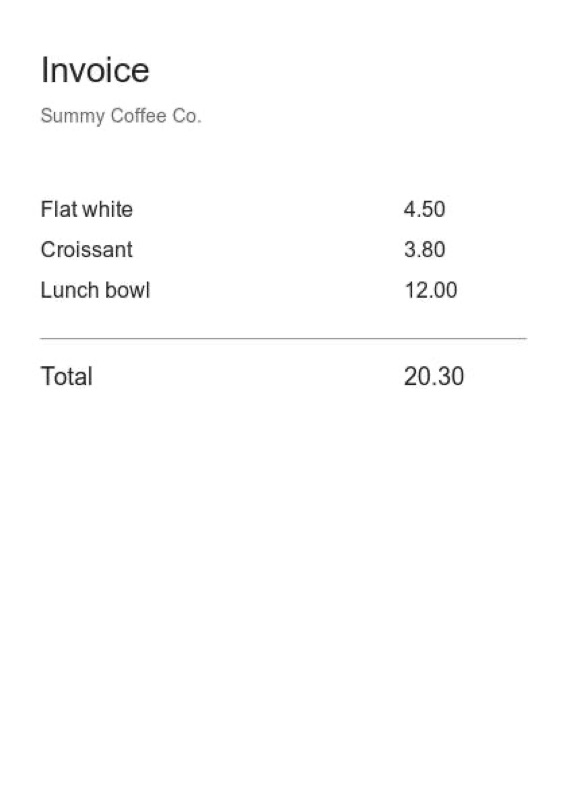
An audio clip has a player:
A video plays right in the note:
Headings and formatting
Lines starting with # are headings.
**Bold**, _italic_ and __underline__. Select text and press ⌘B, ⌘I or ⌘U.
Checklists and lists
[ ] Click a box or press ⌘Enter to tick it
[x] Ticked items fade
[-] ⌘⌥Enter cancels an item and leaves it out of the math
- Bullet lists work too
1. So do numbered lists
Links
Linking notes
Wrap a note title in double square brackets to link to it, like Welcome to Summy!
Type [[ and pick a note from the list, or write a new title to create that note.
Hover a link to preview the note, click it to open it.
⌘[ goes back to the note you came from and ⌘] goes forward again.
My Numbers
Save a number once, like a tax rate or a salary, and use it in any note as a pill. Open the palette with ⌘/ and pick New number. It can even be a formula or a script.
Tips
⌘N starts a new note and ⇧⌘N opens it in a new window.
⌘K searches all your notes.
⌘/ opens the command palette: formatting, My Numbers, sharing and export.
⌥↑ and ⌥↓ move the current line.
⌘E exports as PDF, image, Markdown or text.
Share note in the palette makes a link anyone can open.